
Setting up MCP servers used to mean hunting docs and hand-editing JSON configs. Docker’s MCP Toolkit removes most of that friction.
What MCP is
MCP is Anthropic’s protocol for letting agents such as Claude call external tools: Slack, GitHub, transcripts, databases, and so on. The idea was fine. The config tax was not. Every server meant more JSON in the Claude config.
What Docker built
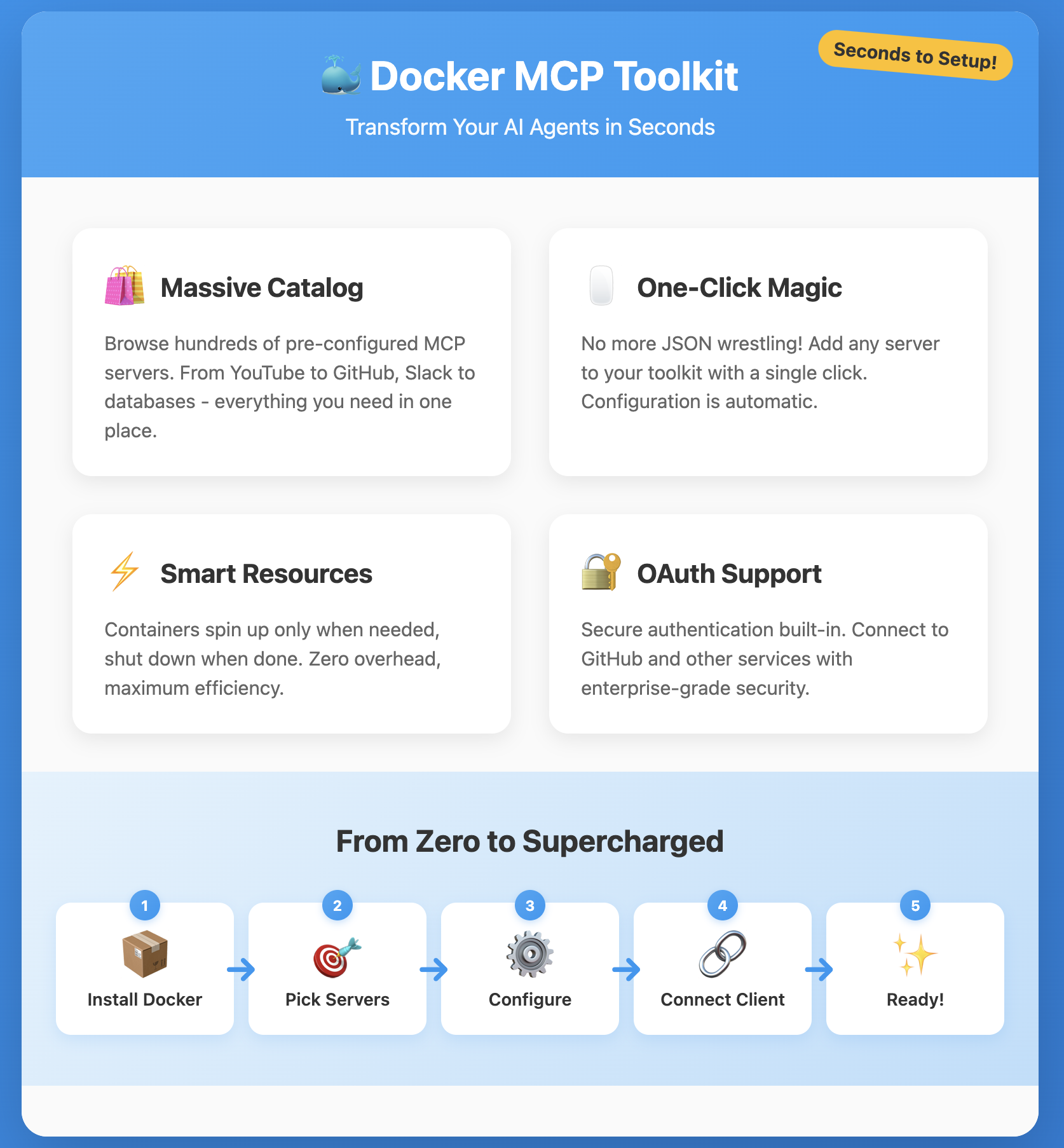
Docker Desktop now ships an MCP Toolkit. The useful parts:
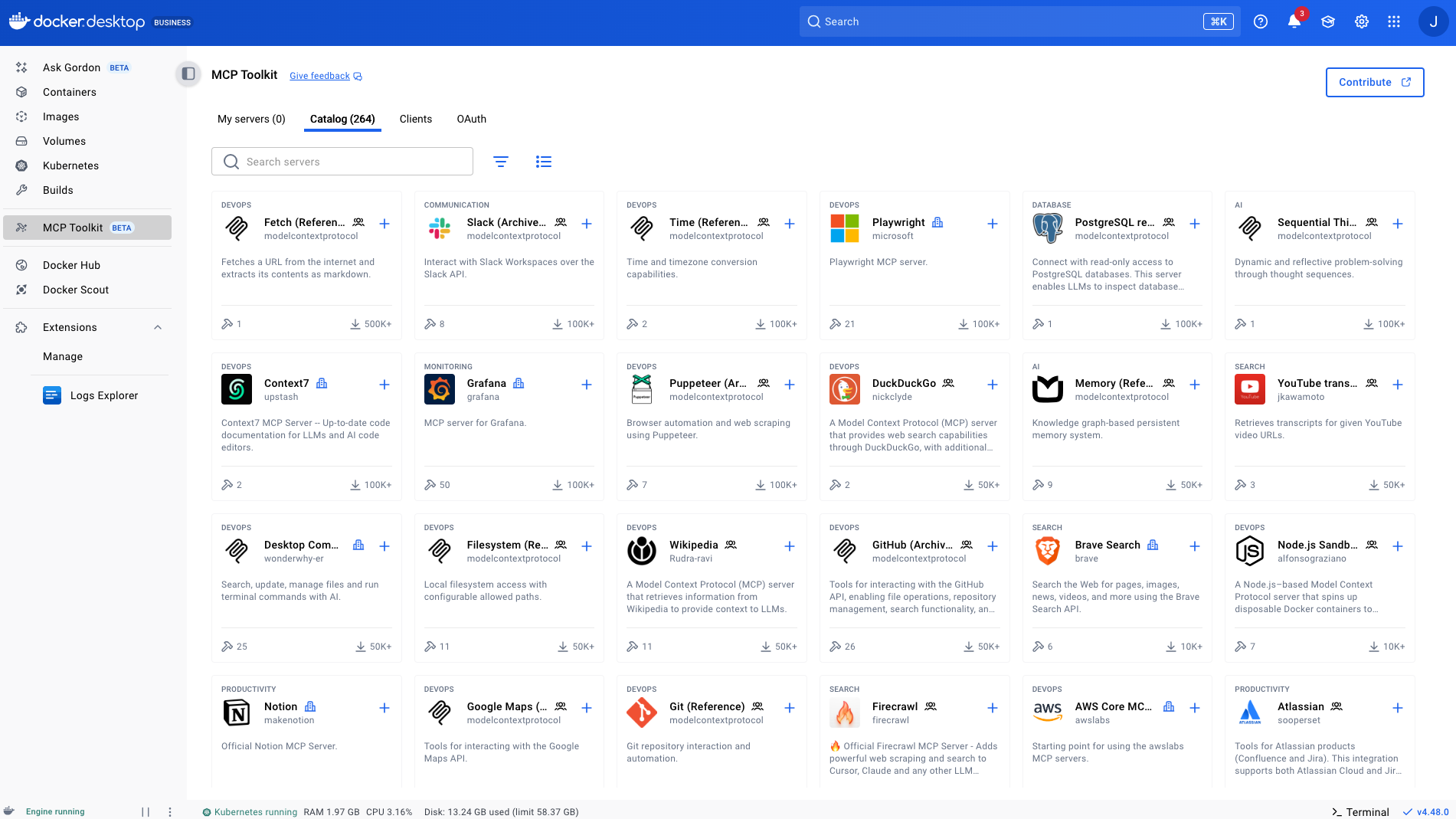
The Catalog Interface
Instead of hunting down MCP servers on GitHub and figuring out how to configure them, you get a curated catalog in Docker Desktop. It shows you what is popular, what each server does, and you can add them with a single click.
The catalog writes the JSON for connected clients (Claude Desktop, Cursor, and others), so you skip the hand edits.
How the Containers Work
Each MCP server runs in its own container, with a detail that matters for laptop use:
- Containers only spin up when a tool is actually called
- They shut down automatically when the task completes
- When idle, they consume zero memory
- You get the isolation benefits of containers without the overhead of running everything 24/7
So if you have 10 MCP servers configured but only use one of them, you are only running one container now. It is efficient.
Authentication That Does Not Suck
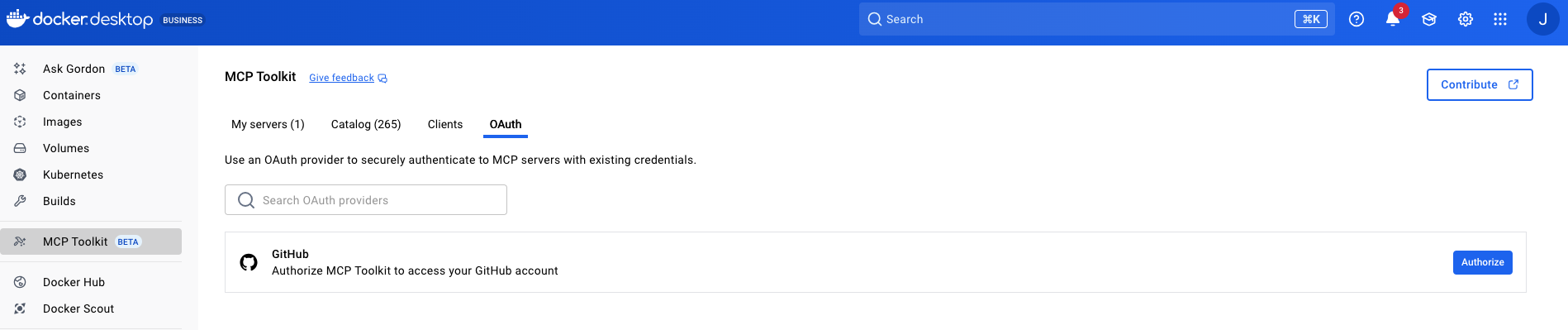
Here is something that usually takes forever: OAuth flows. The catalog has built-in OAuth support for services like GitHub. You click to authenticate, and it handles the token dance. You are done. For API-key-based services, there is a straightforward interface to add your credentials.
Compare that to manually managing environment variables or config files. Yeah, this is better.
What’s Actually Available
The catalog has the servers you would expect if you have been following the MCP ecosystem:
Core Productivity Tools
- YouTube – grab transcripts, summarize videos
- Slack – read channels, post messages (helpful for monitoring or notifications)
- GitHub – create issues, read repos, manage PRs
- Notion, Obsidian – knowledge base integration
Development Tools
- Database connectors (PostgreSQL, SQLite, etc.)
- File system access
- Memory/cache systems like ChromaDB
- Fetch (for web scraping and HTTP requests)
There is also Gordon, Docker’s built-in test agent. It is in beta, but it is useful for quickly checking if an MCP server is working before you try using it with your actual workflow.
A Real Workflow Example
Let me give you a practical example of why this matters. Say you are researching a technical topic:
- Use the YouTube MCP server to pull transcripts from conference talks
- Have Claude summarize the key points
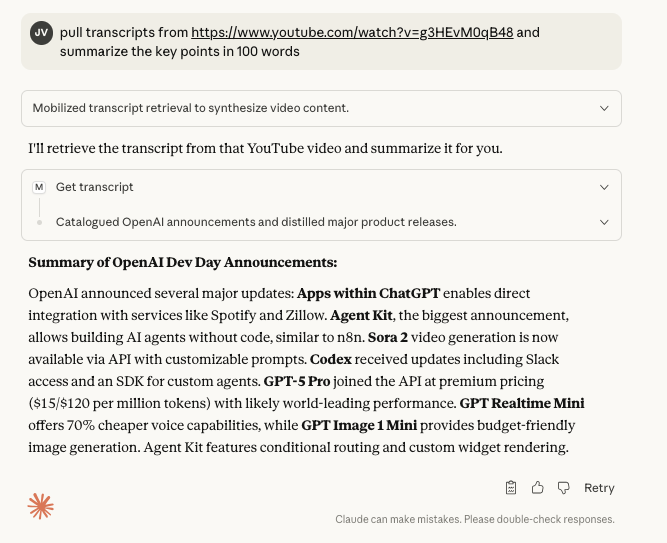
Before the catalog, setting up those five MCP servers meant editing JSON configs, debugging path issues, and restarting things a few times. Now it is 10 minutes of clicking through the catalog.
Setting It Up
The actual setup is straightforward:
- Make sure you have Docker Desktop installed
- Enable beta features in Settings → Beta features → Enable Docker MCP Toolkit
- Open the MCP Catalog from the Docker Desktop’s MCP Toolkit section
- Browse servers and click “Add MCP Server” for what you need
- Configure any API keys or OAuth in the configuration section of the MCP server
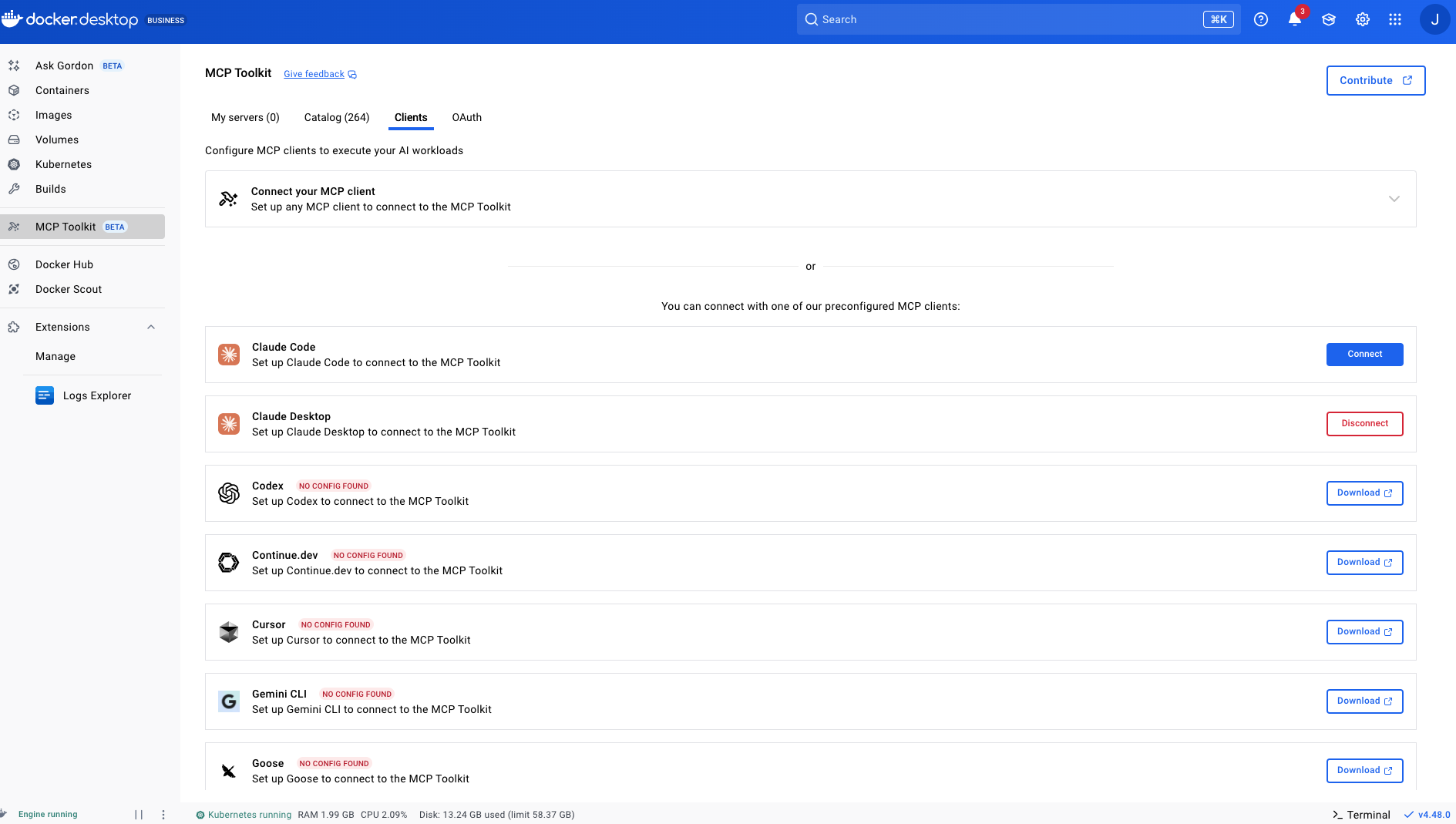
- In your MCP Tpplkit –> Clients section, click to connect to MCP clients
- Restart your MCP clients
The whole thing takes less time than it took me to write this section.
For Custom Integrations
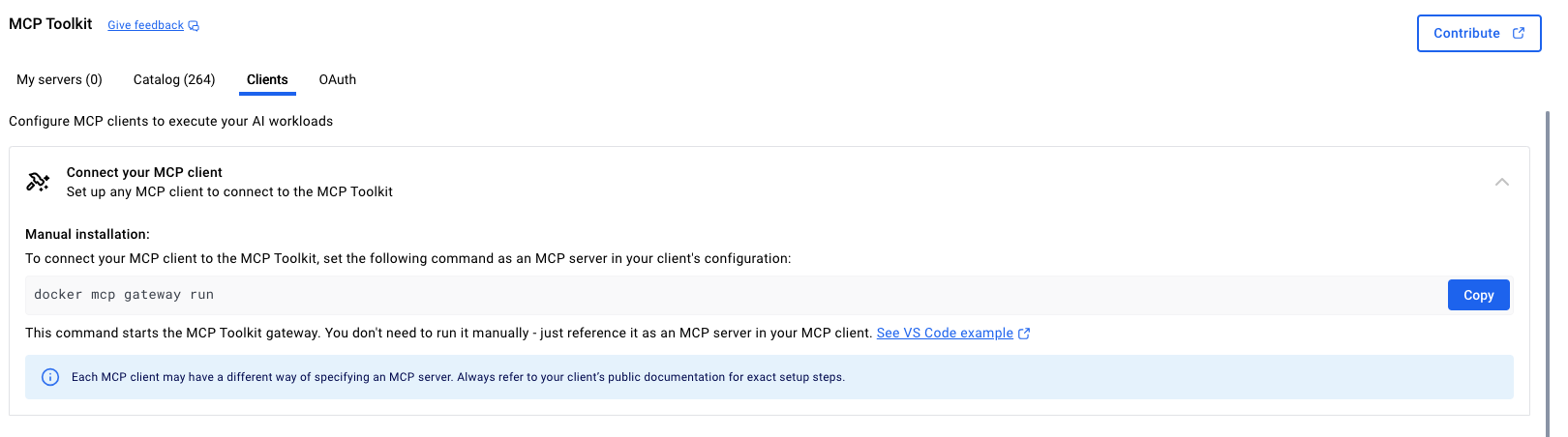
If you are building your own agents or using frameworks like N8N or Python-based systems, Docker has open-sourced the MCP Gateway. It lets you orchestrate MCP servers through HTTP with streamable protocol support.
Bottom Line
The Docker MCP Toolkit is worth checking out if you use AI agents for anything beyond basic chat. It automates the tedious parts of MCP server management while providing the control and isolation that containers provide.
The fact that it is built into Docker Desktop means there is one less tool to install, one less service to manage, and one less thing to forget when switching between projects.
Give it a try. Set up a few servers, test them with Gordon/Claude, and see if it fits your workflow. Worst case, you waste 15 minutes. Best case, you never manually edit an MCP config file again.